Resources & Insights.

Guides, tutorials, and tips on how to automate your work and get the most out of SheetXAI.

An illustration of a rectangular browser window displaying a spreadsheet-like grid with cells containing bright blue horizontal bars. A red callout box with black text that reads "Company.com" points to one of the cells. A large magnifying glass, with a grey lens and a dark gray handle with a red accent, is positioned over the right side of the grid, enlarging the cells beneath it. The browser window has three circular buttons (red, blue, white) on its top left. Minimalist abstract shapes, including lines and circles in dark gray, surround the main illustration on a white background. The overall color palette includes dark purple, red, light blue, and white.
Dec 1, 2025
4 min read

How to Extract Domains from Emails in Excel (Without Formulas)

Extract domains from emails in Excel without complex formulas! Learn the easy, no-formula method and a powerful tool to clean your data fast. Get company.com from john@company.com effortlessly.

David DeSouza
Read more
An illustration of a rectangular browser window displaying a spreadsheet-like grid with cells containing bright blue horizontal bars. A red callout box with black text that reads "Company.com" points to one of the cells. A large magnifying glass, with a grey lens and a dark gray handle with a red accent, is positioned over the right side of the grid, enlarging the cells beneath it. The browser window has three circular buttons (red, blue, white) on its top left. Minimalist abstract shapes, including lines and circles in dark gray, surround the main illustration on a white background. The overall color palette includes dark purple, red, light blue, and white.
Dec 1, 2025
4 min read

How to Extract Domains from Emails in Google Sheets (Without Formulas)

Extract domains from emails in Google Sheets effortlessly! Discover how to do it without formulas using AI, or master the LEN, SEARCH, and RIGHT functions for precise extraction.

David DeSouza
Read more
Illustration for How to Separate First and Last Names in Excel
Dec 1, 2025

How to Separate First and Last Names in Excel

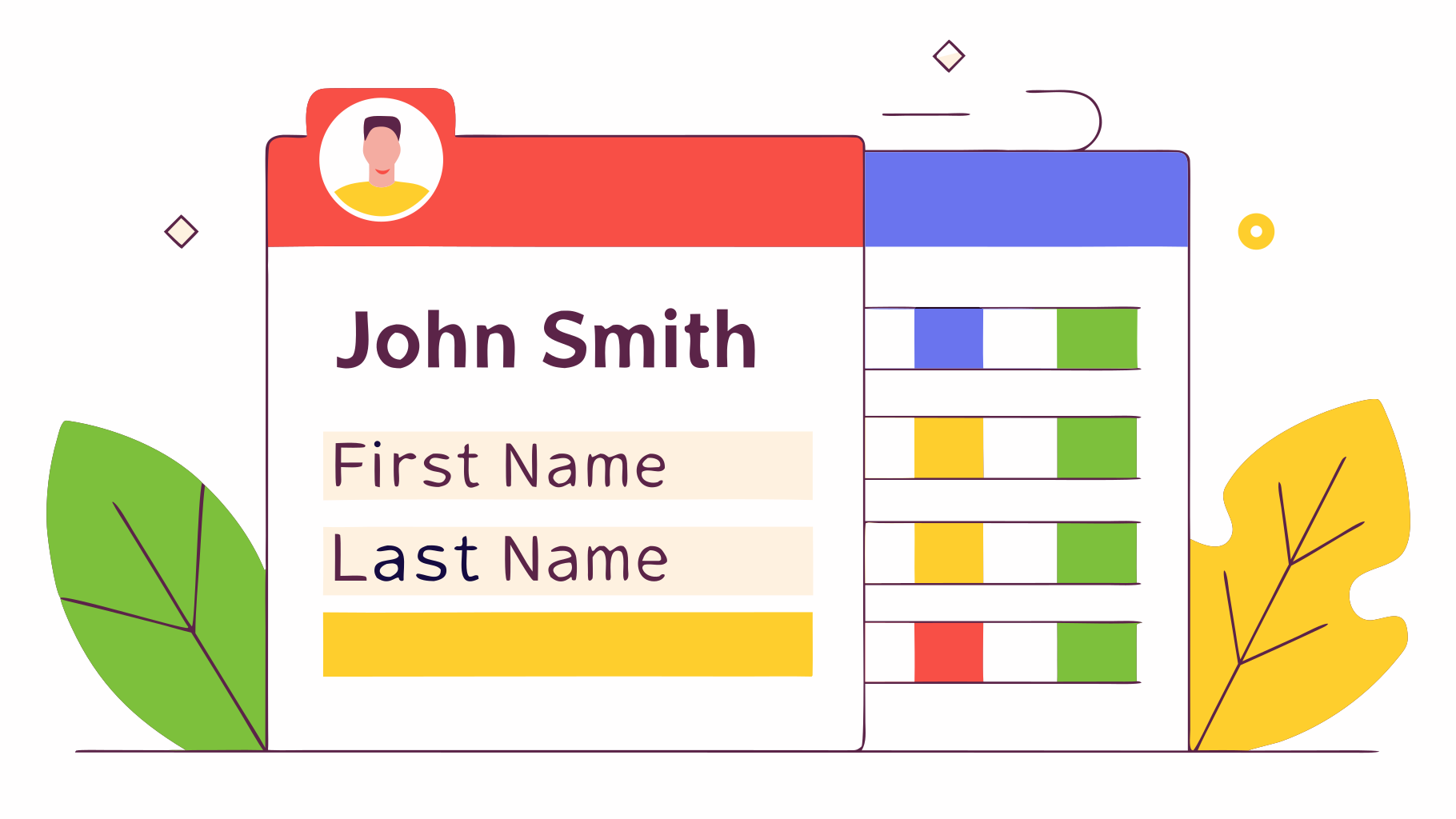
Separate first & last names in Excel! Learn manual formulas (LEFT, RIGHT, SEARCH) or instantly split names with SheetXAI. Save time & get accurate results fast.

David DeSouza
Read more
Illustration for How to Separate First and Last Names in Excel
Dec 1, 2025

How to Separate First and Last Names in Google Sheets

Struggling to split names in Google Sheets? Learn to separate first and last names with powerful formulas (LEFT, RIGHT, SEARCH) or instantly with SheetXAI. Save time & boost productivity!

David DeSouza
Read more
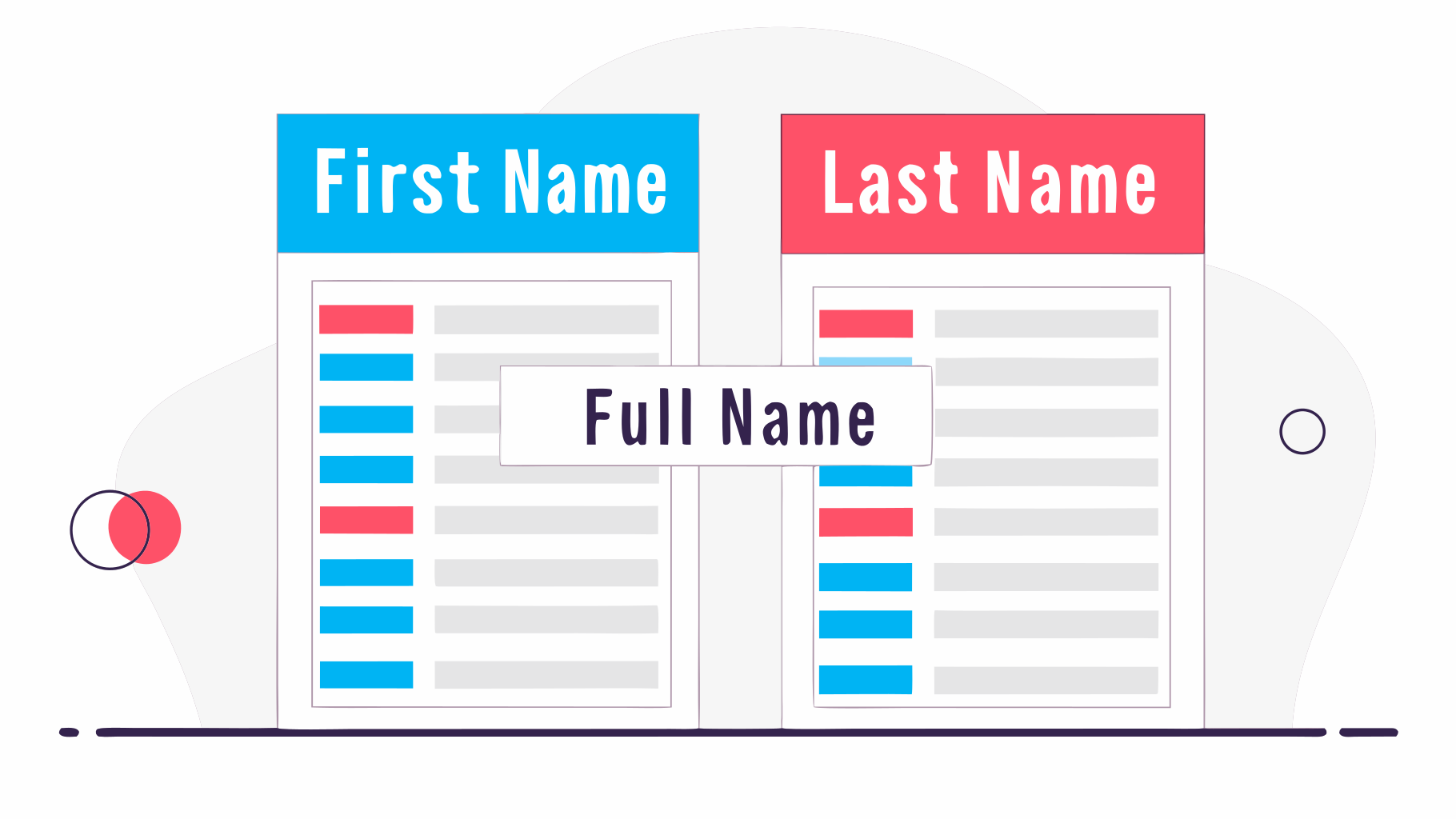
An illustration demonstrating how to combine first and last names. Two large white rectangles, representing spreadsheets, stand side by side on a dark purple line. The left rectangle has a bold blue header that says "First Name" in white text. Below it are vertical rows of alternating blue and red short bars, representing first names, next to longer grey bars, representing other data. The right rectangle has a bold red header that says "Last Name" in white text. Below it, similar vertical rows of alternating blue and red short bars, representing last names, are next to longer grey bars. A white rectangular banner with a thin black border floats centrally between the two rectangles, overlapping them slightly. It features the bold dark purple text "Full Name." Abstract light grey and red shapes and thin dark purple outlines of circles are scattered in the background.
Dec 1, 2025

How to Combine First and Last Names in Excel

Master Excel! Combine first and last names effortlessly using CONCAT, TEXTJOIN, or the easy SheetXAI solution. Get "John Smith" from "John" and "Smith" instantly. Learn the best methods now!

David DeSouza
Read more
An illustration demonstrating how to combine first and last names. Two large white rectangles, representing spreadsheets, stand side by side on a dark purple line. The left rectangle has a bold blue header that says "First Name" in white text. Below it are vertical rows of alternating blue and red short bars, representing first names, next to longer grey bars, representing other data. The right rectangle has a bold red header that says "Last Name" in white text. Below it, similar vertical rows of alternating blue and red short bars, representing last names, are next to longer grey bars. A white rectangular banner with a thin black border floats centrally between the two rectangles, overlapping them slightly. It features the bold dark purple text "Full Name." Abstract light grey and red shapes and thin dark purple outlines of circles are scattered in the background.
Dec 1, 2025

How to Combine First and Last Names in Google Sheets

Combine first & last names in Google Sheets effortlessly! Learn manual formulas like `&` and `TEXTJOIN`, or use AI for instant data merging. Solve your formatting problems fast.

David DeSouza
Read more
Illustration for How to Remove Extra Spaces in Excel
Dec 1, 2025

How to Remove Extra Spaces in Excel

Clean messy Excel data instantly! Learn TRIM formulas to remove leading, trailing, and double spaces. Fix VLOOKUPs & get spotless spreadsheets fast. Discover the easy SheetXAI way too!

David DeSouza
Read more
Illustration for How to Remove Extra Spaces in Excel
Dec 1, 2025

How to Remove Extra Spaces in Google Sheets

Clean up Google Sheets data fast! Learn to remove extra spaces (leading, trailing, double) with TRIM formulas or effortlessly using SheetXAI. Get perfectly formatted data now.

David DeSouza
Read more
Illustration for How to Capitalize the First Letter of Each Word in Excel
Dec 1, 2025

How to Capitalize the First Letter of Each Word in Excel

Fix messy Excel text! Learn to capitalize the first letter of each word using the PROPER function or instantly with SheetXAI. Get professional, clean data quickly & efficiently.

David DeSouza
Read more
Illustration for How to Capitalize the First Letter of Each Word in Excel
Dec 1, 2025

How to Capitalize the First Letter of Each Word in Google Sheets

Fix inconsistent capitalization in Google Sheets instantly! Learn to use the PROPER function or try SheetXAI for an effortless solution. Get professional-looking data fast.

David DeSouza
Read more
Illustration for How to Use VLOOKUP in Excel
Dec 1, 2025

How to Use VLOOKUP in Excel

Master VLOOKUP in Excel! Learn to connect data from different sheets, match IDs, and pull prices. Get the exact formula & step-by-step guide to solve your data challenges.

David DeSouza
Read more
Illustration for How to Use VLOOKUP in Excel
Dec 1, 2025

How to Use VLOOKUP in Google Sheets

Master VLOOKUP in Google Sheets! Learn the classic formula to effortlessly merge data, like product IDs with prices. Get step-by-step instructions and examples for exact matches.

David DeSouza
Read more
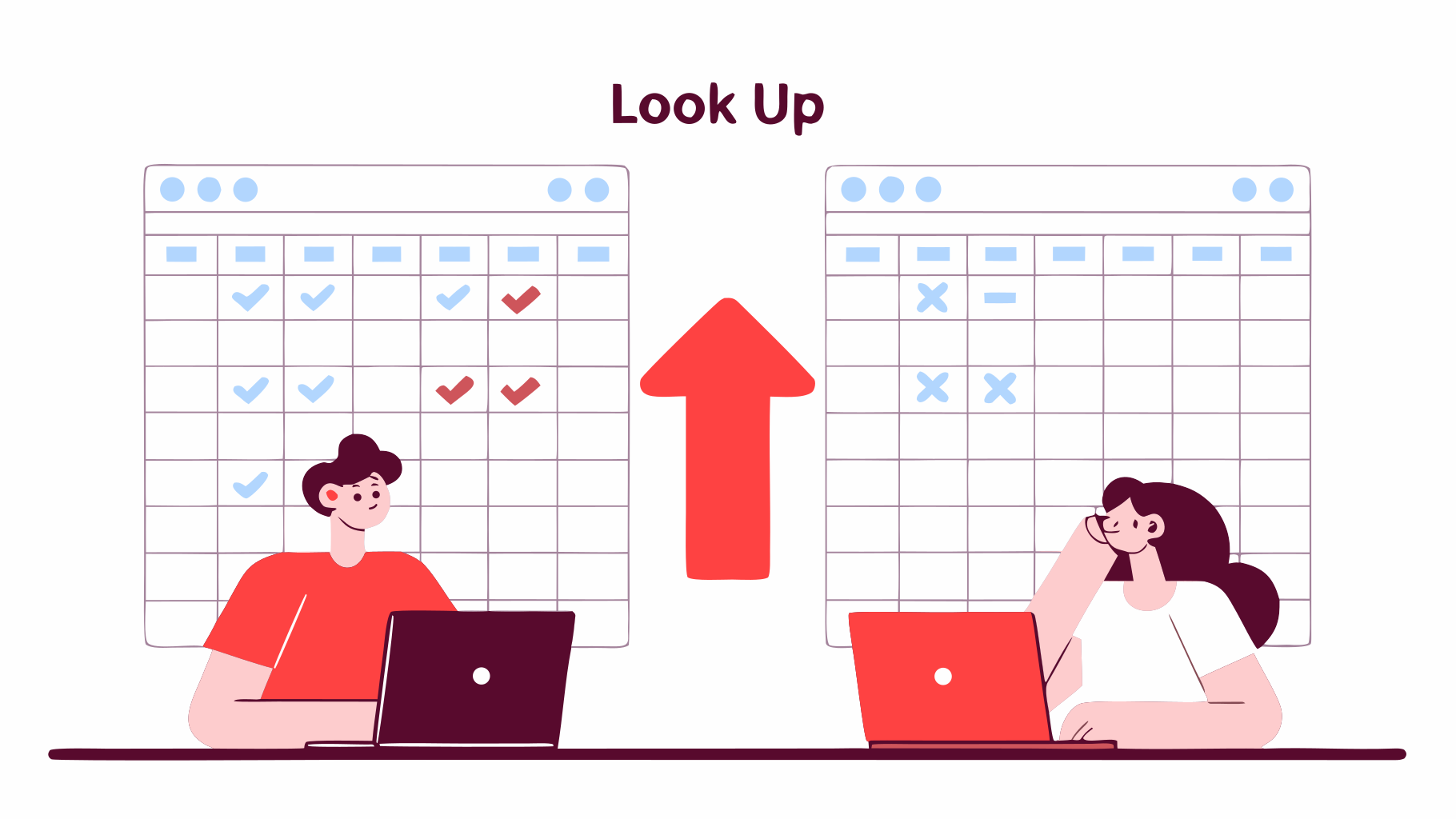
An illustration showing a large grid, resembling a spreadsheet or table, filled with checkmarks and 'X' marks in various colors such as black, white, and red. The grid has four rows and five columns, with cells colored in light orange/beige and outlined in dark purple. Two stylized, faceless people stand on either side of the grid. The person on the left, with dark red hair and wearing a light brown top and dark red pants, holds up a red circle with a white 'X' mark, appearing to interact with a cell. The person on the right, also with dark red hair and wearing a dark red top and pants, has their thumb up (thumbs-up gesture) at the edge of the grid. A large, abstract, light orange/beige shape, possibly representing a cloud or a curved element, is partially visible at the top and bottom of the image, behind the grid. Decorative dotted patterns in dark red or purple are scattered on the left and right
Dec 1, 2025

How to Use INDEX MATCH in Excel

Master INDEX MATCH in Excel! Learn this powerful formula to look up data in any direction, fix VLOOKUP's flaws, and build unbreakable spreadsheets. Get the step-by-step guide now!

David DeSouza
Read more
Illustration for How to Use INDEX MATCH in Excel
Dec 1, 2025

How to Use INDEX MATCH in Google Sheets

Master INDEX MATCH in Google Sheets! Learn to look up data in any direction, fix VLOOKUP's flaws, and prevent broken formulas. Get the formula or use SheetXAI for instant results.

David DeSouza
Read more
Illustration for How to Use XLOOKUP in Excel
Dec 1, 2025
5 min read

How to Use XLOOKUP in Excel

Master XLOOKUP in Excel! Learn this powerful VLOOKUP alternative with clear syntax & examples. Discover an easier, faster way to find data, or automate it with SheetXAI.

David DeSouza
Read more
How to Use XLOOKUP in Google Sheets
Dec 1, 2025
5 min read

How to Use XLOOKUP in Google Sheets

Master XLOOKUP in Google Sheets! Learn the easy, modern successor to VLOOKUP. Find values fast, eliminate manual counting, & get exact matches effortlessly.

David DeSouza
Read more
An illustration depicting two square-shaped spreadsheets or checklists, each bordered in purple and gray outlines, against a light cream-colored oval background. The spreadsheet on the left displays two columns and four rows of cells. The first column from the top shows a light pink checkmark in the first cell, a red background with a white checkmark in the second and third cells, and a red background with a white 'X' in the fourth cell. The second column has an empty cell, then a red background cell, and two empty cells. A green circle with a white checkmark is positioned above the top right corner of this left spreadsheet. The spreadsheet on the right also has two columns and four rows of cells. The first column from the top displays two cells with red backgrounds and white checkmarks, followed by two empty cells. The second column shows an empty cell, a red background cell, and two more empty cells. Above the top right corner of this right spreadsheet is a red circle with a
Dec 1, 2025

How to Use COUNTIF in Excel

Master COUNTIF in Excel! Learn to count values based on criteria, from sales totals to specific names. Get quick solutions & boost your spreadsheet skills.

David DeSouza
Read more
Illustration for How to Use COUNTIF in Excel
Dec 1, 2025

How to Use COUNTIF in Google Sheets

Master COUNTIF in Google Sheets! Learn to count values based on criteria, like sales by rep or orders over a certain amount. Solve data problems easily, or use SheetXAI for instant results.

David DeSouza
Read more
A flat design illustration in earth tones, depicting a dark gray spreadsheet-like interface with a header bar showing three white circles (minimize, maximize, close) and a larger sheet below. The sheet has a grid of cells, with some horizontally arranged cells shaded in a peach color, suggesting populated data. On the left, two stacks of peach-colored coins are seen, with dark purple leaves behind them. On the right, a stack of books with peach-colored covers rests below a similar plant. Two peach-colored circles with two vertical white lines inside (resembling a pause symbol) are positioned on the upper left and upper right of the spreadsheet. Abstract organic shapes in light peach and beige form a background. The color palette primarily includes dark gray, various shades of peach, beige, white, and dark purple.
Dec 1, 2025

How to Use SUMIF in Excel

Master SUMIF in Excel! Learn to sum data based on specific criteria like region or product. Get step-by-step formula examples & discover an easier way with SheetXAI.

David DeSouza
Read more
Illustration for How to Use SUMIF in Excel
Dec 1, 2025

How to Use SUMIF in Google Sheets

Master SUMIF in Google Sheets! Learn to sum data based on criteria, like total revenue for a specific region. Get the formula & an easier AI alternative.

David DeSouza
Read more
Illustration for How to Write Nested IF Statements in Excel
Dec 1, 2025
6 min read

How to Write Nested IF Statements in Excel

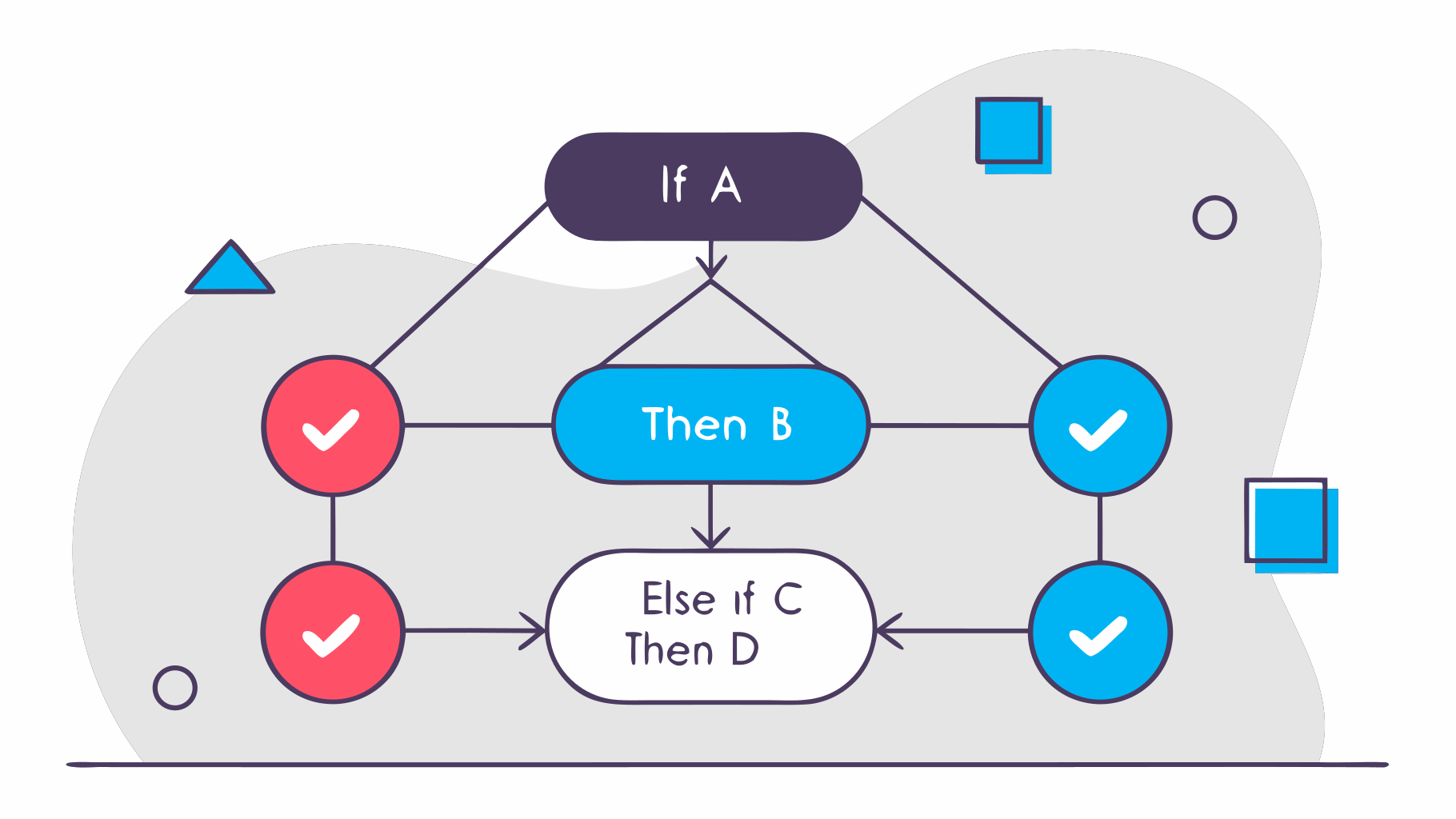
Master nested IF statements in Excel! Learn to grade scores (A, B, C) and handle complex logic with step-by-step formulas. Simplify your spreadsheets today!

David DeSouza
Read more
How to Write Nested IF Statements in Google Sheets
Dec 1, 2025
6 min read

How to Write Nested IF Statements in Google Sheets

Master nested IF statements in Google Sheets! Learn to handle complex logic for grading, categorization, and more. Get the formula or use AI for instant solutions.

David DeSouza
Read more
A minimalist illustration featuring two desk calendars side-by-side against a white background, representing time tracking or date calculations. The calendar on the left has a light gray border at the top with three black rings for binding, and 15 blank white squares with dark outlines, representing days of the month. One square in the top left corner has a yellow checkmark, and two squares in the bottom row are filled with solid yellow. The right calendar has a red border at the top with three black rings, and 15 squares filled with solid light red. Both calendars have a dark purple stand visible at the bottom. Small, decorative leaves in white and yellow are placed at the base of the left calendar, and a larger yellow leaf is at the base of the right calendar, giving a soft, organic touch. Small sparkle-like asterisks are scattered above the calendars in two places, adding a subtle visual interest.
Dec 1, 2025

How to Calculate Days Between Dates in Excel

Learn to calculate days between dates in Excel! Discover simple subtraction for total days or NETWORKDAYS for business days. Master essential formulas or use SheetXAI for instant solutions.

David DeSouza
Read more
Illustration for How to Calculate Days Between Dates in Excel
Dec 1, 2025

How to Calculate Days Between Dates in Google Sheets

Master calculating days between dates in Google Sheets! Learn easy subtraction for total days or use NETWORKDAYS for business days. Discover a faster, AI-powered method too.

David DeSouza
Read more
Illustration for How to Extract Month and Year from Date in Excel
Dec 1, 2025
3 min read

How to Extract Month and Year from Date in Excel

Extract month and year from dates in Excel with ease! Learn manual formulas like TEXT or instantly get results with SheetXAI. Simplify your data analysis today.

David DeSouza
Read more

A vector illustration depicting two calendar pages, representing "month" and "year" separated by a vertical line. The left calendar page shows "November" in large dark text, and the right calendar page shows "2024" in large dark text. Both calendar pages have a light background with subtle grid lines, suggesting a calendar layout. Small decorative elements like leaves and geometric shapes are scattered around the calendars. The overall color palette includes shades of blue, purple, and white.
Dec 1, 2025
3 min read

How to Extract Month and Year from Date in Google Sheets

Extract month and year from dates in Google Sheets! Learn easy formulas or use SheetXAI for instant results. Group data by month name or year for better reporting.

David DeSouza
Read more
A stylized illustration depicts two people standing on either side of a large blue inverted triangle, serving as a funnel or filter. The man on the left wears a light green shirt and dark blue pants, holding a magnifying glass to the triangle's opening. The woman on the right wears a coral shirt and light green pants, also holding a magnifying glass towards the triangle. Inside the inverted triangle are five light green rectangular boxes stacked vertically, each with a white circle and a dark blue line, representing data entries or options. Two light green gears are positioned above the top corners of the triangle, suggesting a filtering or processing mechanism. Below the triangle, abstract light green and white leafy shapes are scattered. The overall color palette is dominated by various shades of blue, green, and white, with coral and dark blue accents. The image conveys the concept of searching, filtering, or identifying specific items from a larger set.
Dec 1, 2025
3 min read

How to Find Unique Values in Excel

Master finding unique values in Excel! Learn the `UNIQUE` formula for quick results or use SheetXAI for instant, no-formula solutions. Get your unique lists fast!

David DeSouza
Read more
How to Find Unique Values in Google Sheets
Dec 1, 2025
3 min read

How to Find Unique Values in Google Sheets

Unlock unique values in Google Sheets! Learn the easy `=UNIQUE()` formula or use SheetXAI for instant results. Get distinct data fast, without duplicates.

David DeSouza
Read more
An illustration depicting two individuals interacting with data visualized as a bar chart. On the left, a woman with long dark hair, wearing a dark blue top and red pants, holds a blue laptop and stands amidst several rectangular bars. These bars, outlined in dark blue, are partially filled with either bright blue or white segments, suggesting varying data values or states. On the right, a man with dark hair, wearing a red long-sleeved shirt, dark blue pants, and bright blue shoes, holds a white laptop and stands near similar bar chart elements. The bars in the background are arranged in a dynamic pattern, some tall, some short, with sections of bright blue and white, and occasional subtle light grey lines or portions. Small, dark blue dashed lines float subtly in the background above both individuals, adding to the digital and analytical theme.
Dec 1, 2025
3 min read

How to Sort Data with Formulas in Excel

Master Excel data sorting with formulas! Learn to dynamically sort data as new items are added, or use SheetXAI for instant, effortless results. Get your data organized now!

David DeSouza
Read more
How to Sort Data with Formulas in Google Sheets
Dec 1, 2025
3 min read

How to Sort Data with Formulas in Google Sheets

Master dynamic data sorting in Google Sheets! Learn to use the SORT formula for automatic updates, or discover how SheetXAI can instantly sort your data without manual formulas.

David DeSouza
Read more

Boost your productivity today.
Start automating your spreadsheets.

Join thousands of professionals saving hours every week. No credit card required to start.

Learn more